Graph, pools, variables, workers, audit & API tokens
The operations pages of the cronova web console: the cross-DAG dependency graph, global concurrency pools, shared variables and connections, the dial-in worker fleet, the operator audit trail, and API tokens for machine access. Everything here lives in the sidebar below your DAG list, at http://localhost:8090.
Cross-DAG graph (#/graph)
The Graph page draws every trigger_after relationship in your installation as one picture — which DAGs fire which other DAGs when they finish.
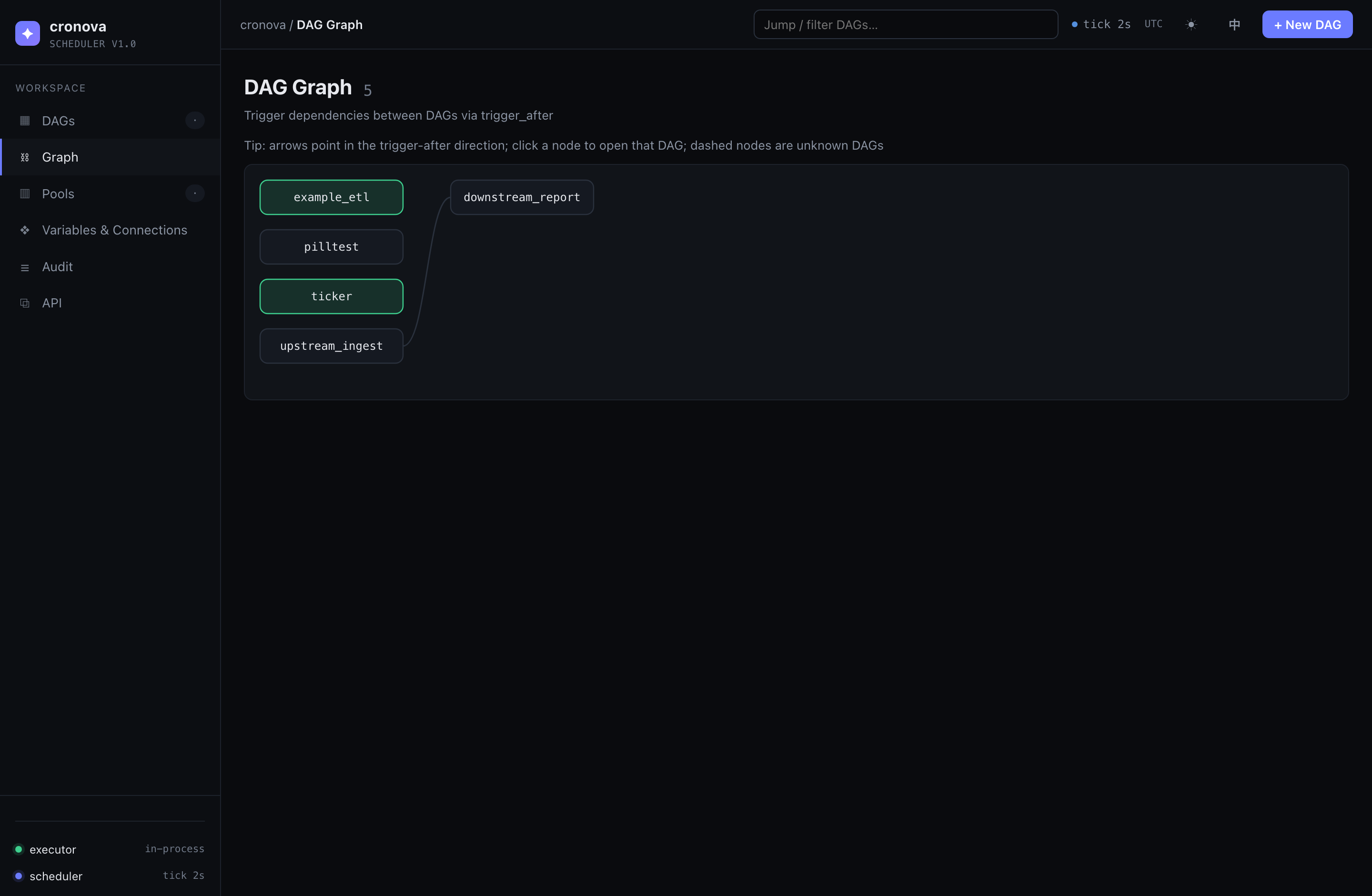
How to read it:
| Element | Meaning |
|---|---|
| Arrow | Points in the trigger-after direction: upstream DAG → the DAG it triggers on completion. |
| Node color | Tinted by that DAG's latest run state (green success, red failed, blue running, …). Neutral means no runs yet. |
| Solid node | A known DAG — click it to open that DAG's page (Working with a DAG). |
| Dashed node | An unknown DAG: something references it in trigger_after, but no DAG with that id exists. Dashed nodes are not clickable. |
Navigate large graphs by dragging to pan and zooming with Ctrl / Cmd + mouse wheel — a plain wheel still scrolls the page. The overlay buttons in the corner zoom in (+), zoom out (−), and fit the whole graph to the viewport (⤢).
If no DAG declares trigger_after, the page shows an empty state instead of a graph.
Pools (#/pools)
Pools are named sets of global concurrency slots, shared across all DAGs and runs. A task occupies one slot of its pool while it executes; when a pool is full, further tasks queue until a slot frees up.
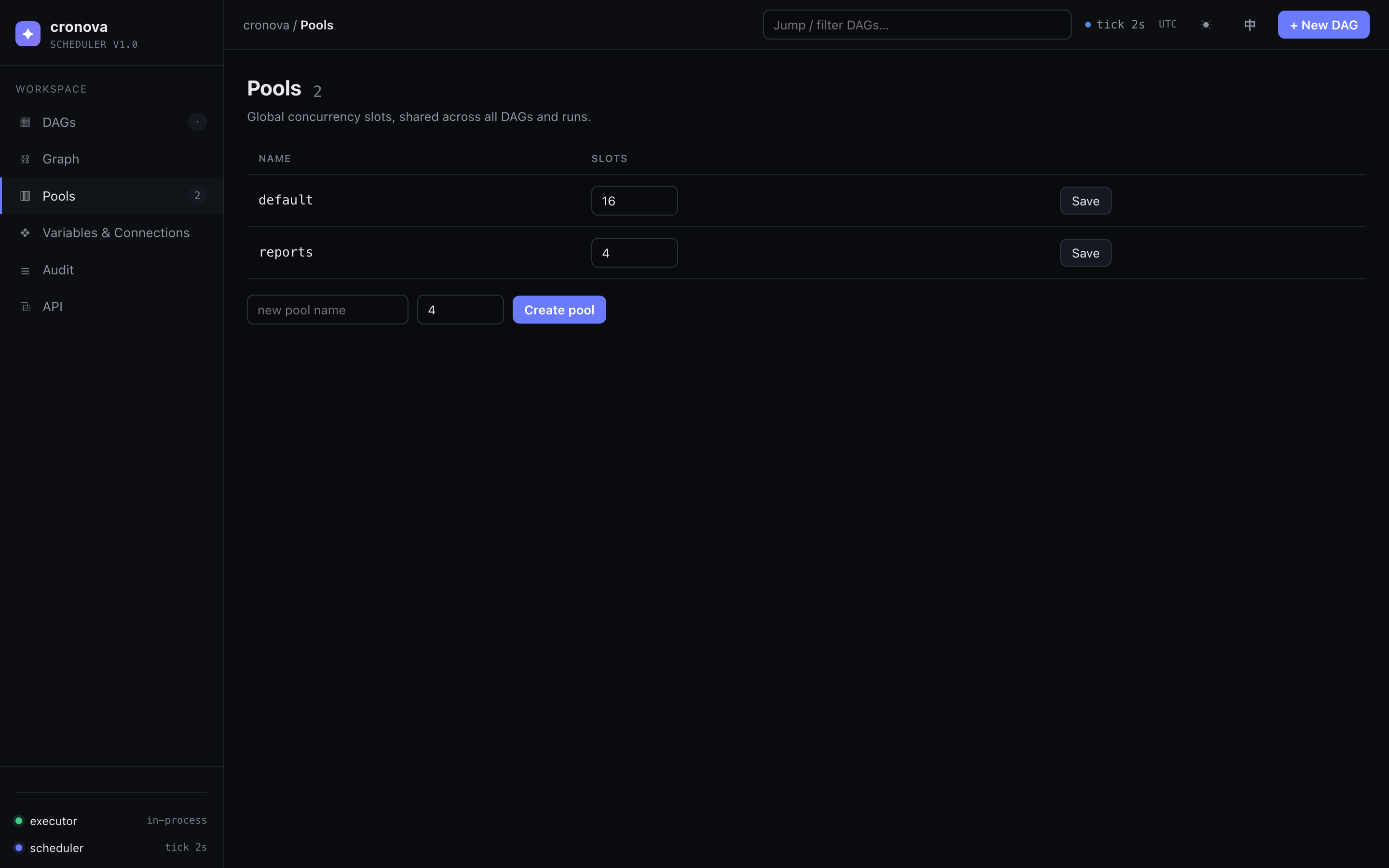
The table lists every pool:
| Column | Description |
|---|---|
| Name | Pool id, referenced from task YAML. |
| Slots | Maximum concurrent tasks — an editable number field (minimum 1). |
| Save | Applies the new slot count for that row. |
- Create a pool: type a name and a slot count in the toolbar below the table (default 4) and click Create.
- Resize a pool: change the number in its Slots field and click Save.
Tasks opt in with the pool: field; every task defaults to the default pool, and priority decides who wins a contended slot. See DAG & Task Reference for the YAML side and the pools tutorial for a worked example. You can also manage pools from the CLI with cronova pools set (CLI Reference).
Variables & Connections (#/resources)
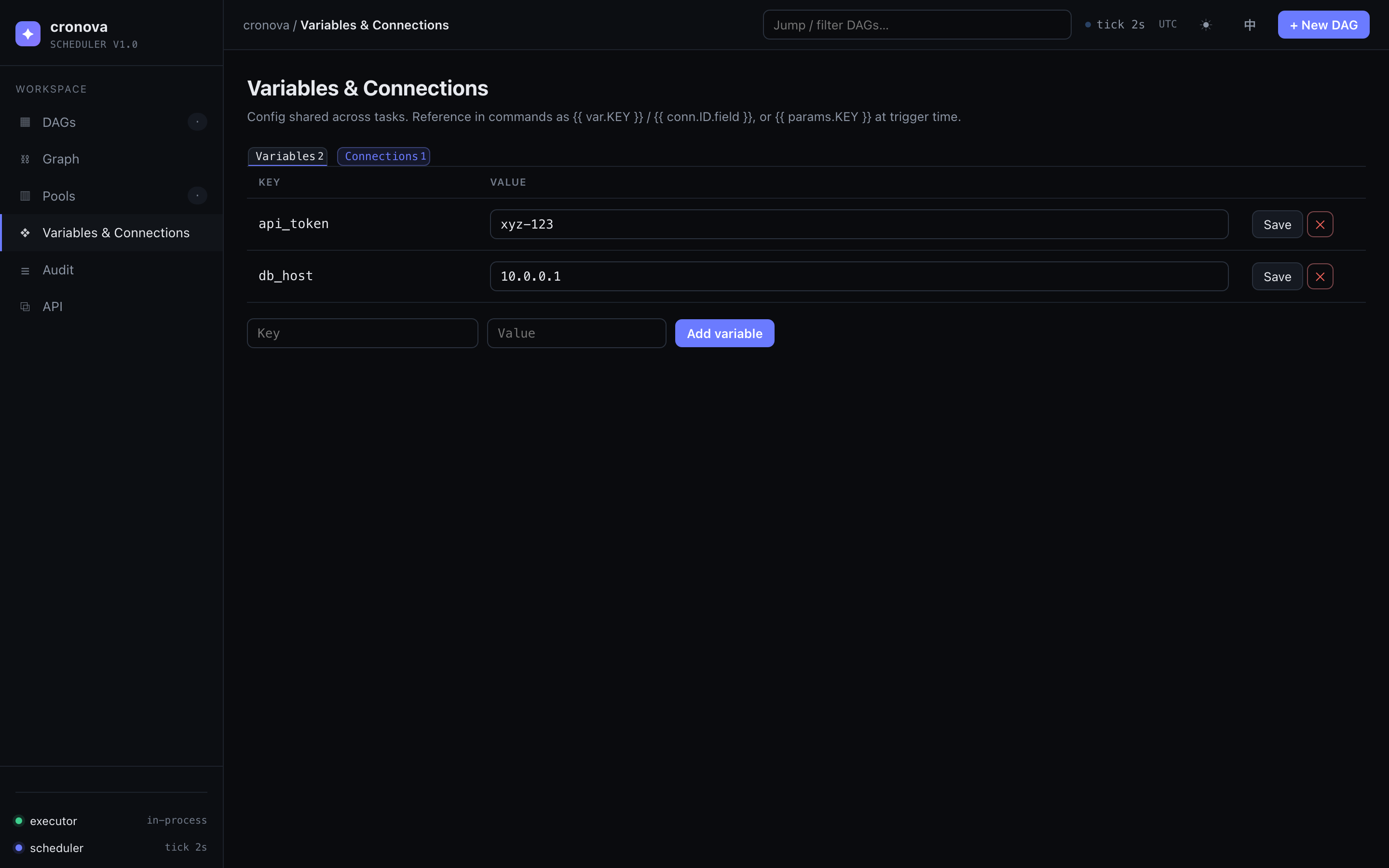
The Variables & Connections page holds configuration shared across tasks, in three tabs: variables, connections, and alert groups. Reference values in task commands as {{ var.KEY }} and {{ conn.ID.field }}, or pass {{ params.KEY }} at trigger time — the template variables tutorial covers the first two.
Variables
Plain key/value pairs, edited inline:
| Column | Description |
|---|---|
| Key | Variable name. Letters, digits, _, . and - only. |
| Value | Editable text field — change it and click Save on the same row. |
| Actions | Save the row, or ✕ to delete (with confirmation). |
Add a new variable with the key + value inputs below the table and Add variable. Use it anywhere templates render, e.g. Authorization: Bearer {{ var.TOKEN }}.
Connections
Named endpoint credentials — databases, APIs, hosts. The list shows each connection's id, type, host:port, login, and whether a password is set (••••••); Edit opens the dialog, ✕ deletes.
New connection opens a dialog with these fields:
| Field | Notes |
|---|---|
| Connection ID | e.g. mysql_prod. Fixed after creation (same charset rule as variable keys). |
| Type | Free text, e.g. mysql. |
| Host / Port / Login | Endpoint address and user. |
| Password | Write-only. On edit it starts blank; leave it blank to keep the stored secret. |
| Extra (JSON) | Arbitrary extra fields as a JSON object, e.g. {"schema":"prod"}. |
Passwords are never displayed back
The console (and the API) never return a stored connection password — the list only shows whether one is set. To rotate a secret, type a new value; to keep it, leave the field blank.
In templates, read connection fields as {{ conn.ID.host }}, .port, .login (alias .user), .password, .type, or {{ conn.ID.extra.KEY }} for Extra-JSON keys. sql tasks consume a connection directly via their conn: field — see DAG & Task Reference.
Alert groups
Named fan-outs of notification channels (expert mode). A DAG that sets Alert group in its Settings → Notifications row alerts every channel of the group instead of its single webhook URL — when the on-call destinations change, edit them here once instead of in every DAG.
The list shows each group's name, channel count with a per-channel destination summary, and last-updated time; Edit opens the dialog, ✕ deletes (with confirmation — referencing DAGs fall back to their own notify URL, so no alert is lost).
New alert group opens a dialog:
| Field | Notes |
|---|---|
| Group name | e.g. oncall. Fixed after creation (same charset rule as variable keys, max 128 chars). |
| Channels | 1–16 rows, each a URL + message format. URLs may be http(s):// incoming webhooks or mailto:addr[,addr]; formats are raw, slack, feishu, dingtalk, or email. + Add channel appends a row, ✕ removes one. |
mailto: channels need SMTP
Email channels are delivered through the server's SMTP relay — configure the smtp: section of the server config first, or mail deliveries fail (logged, never blocking runs).
In DAG YAML the group is referenced as notify.group — see DAG & Task Reference for the resolution rules (group wins over notify.url; a dangling reference falls back rather than dropping the alert).
Workers (#/workers)
The Workers page (expert mode) manages the fleet of remote workers dialed into this scheduler. Tasks opt into remote execution with the worker_group field (DAG- or task-level, see DAG & Task Reference); a task's group is matched against each worker's group label (default default).
The table lists every registered worker and refreshes itself every ~5 seconds while the page is open:
| Column | Description |
|---|---|
| Name | The name the worker joined with (labels beyond group show underneath as muted k=v text). |
| worker_id | Server-assigned id (click to copy). |
| Group | The worker's routing group — the group label, default when unset. |
| State | online (session up and heartbeating), offline (clean disconnect), or lost (heartbeats stopped without a goodbye; its running tasks fail over per retry policy). A draining tag is appended while draining. |
| Active tasks | Tasks currently executing on the worker. |
| Version | The worker binary's version. |
| Last heartbeat | Relative time of the last heartbeat (hover for the absolute time). |
| Joined | When the worker first joined. |
Row actions (admin only):
- Drain / Undrain — a draining worker finishes its running tasks but receives no new assignments; use it before maintenance. Undrain resumes assignments. Both ask for confirmation.
- ✕ Remove — deletes the registration and closes any live session, after a confirmation warning. Removal is immediate and permanent: the worker's certificate stops being accepted, so a removed worker cannot reconnect — it must re-join with a fresh token.
Joining a worker
Attaching a worker takes two steps:
- Click New join token (admin), pick an expiry (1 hour / 24 hours / 7 days), and mint. The one-time token is shown exactly once — copy it now; only its hash is stored.
- On the worker host, run the join command shown next to the token:
The worker exchanges the token + a CSR for a signed certificate (its private key never leaves the host) and dials the hub; it appears online in the table within seconds. Tokens are single-use and expire on their TTL.
Requires worker_listen
The worker hub is off by default. If minting a token fails with worker hub is not enabled, set worker_listen in the server config (or the CRONOVA_WORKER_LISTEN environment variable) and restart the server.
Audit (#/audit)
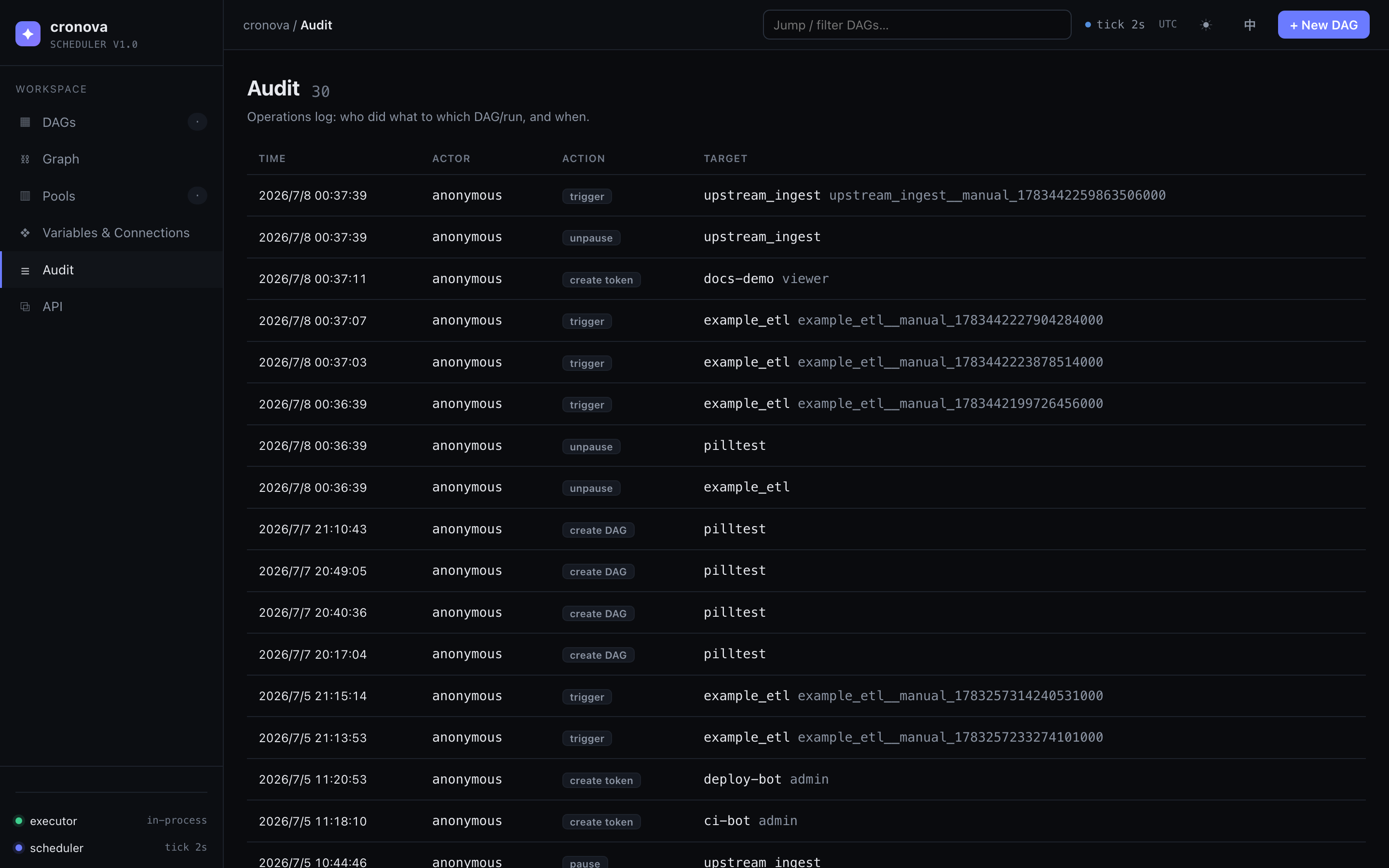
The Audit page is the operations log: who did what to which DAG or run, and when. It lists the latest 200 entries.
| Column | Description |
|---|---|
| Time | When the action happened. |
| Actor | The signed-in username, or anonymous when authentication is off. |
| Action | What was done (see below). |
| Target | The DAG id, run id, or token affected, plus a detail suffix (e.g. task=success for a mark). |
Recorded actions: trigger, cancel, retry run, retry task, mark task, mark run, create DAG, delete DAG, pause, unpause, create token, revoke token, save alert group, delete alert group, and project uploads/deletes.
Auto-saved edits are not logged
The task editor auto-saves on every debounced keystroke, so routine edits to an existing DAG are deliberately not audited — only the creation of a genuinely new DAG is. The trail stays meaningful instead of drowning in save events.
API (#/api)
The API & Integration page is where you connect other systems to cronova: interactive API docs plus API tokens for machine access.
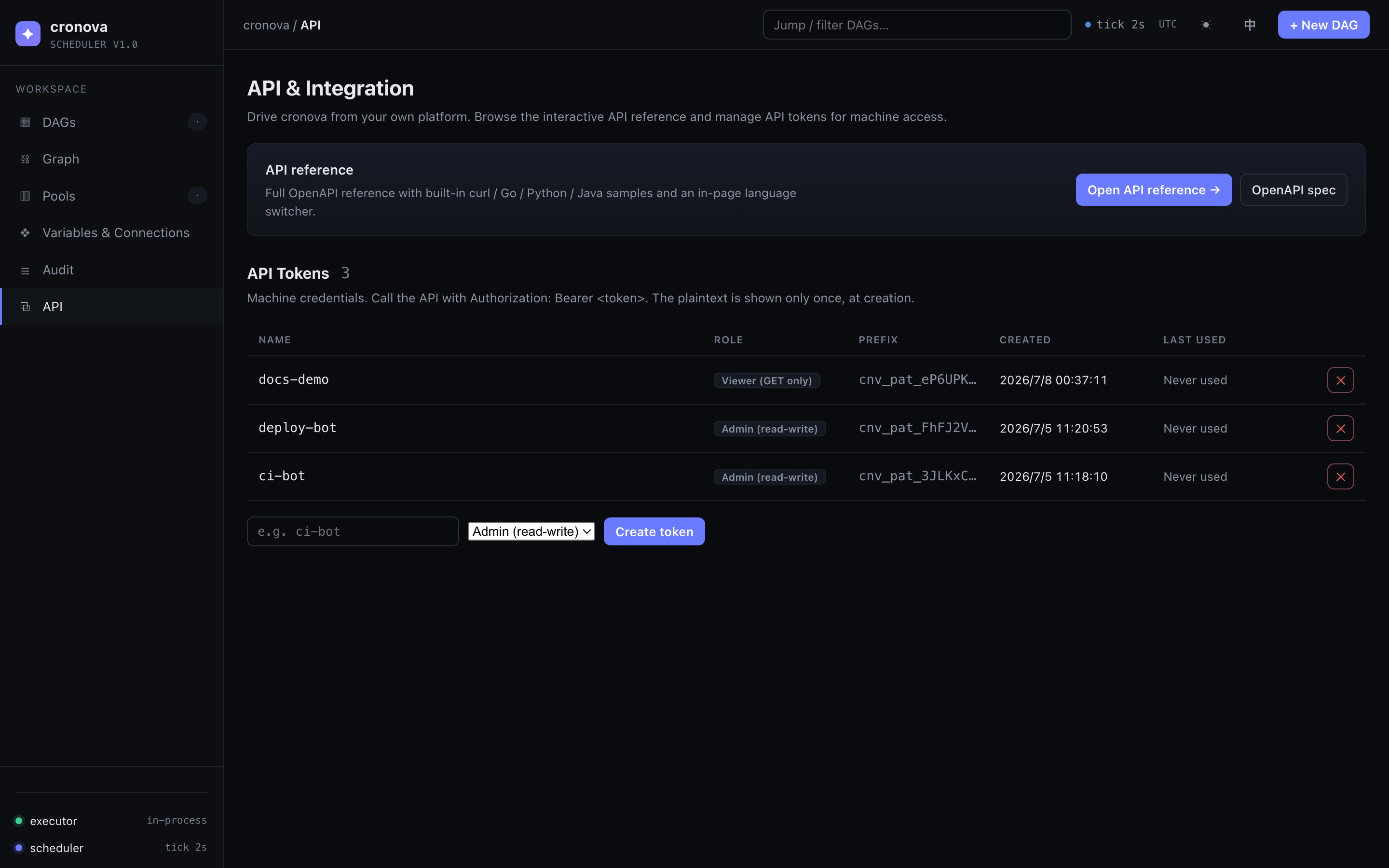
API reference
- Open API reference → opens the interactive docs at
/docs— a self-contained Redoc page with built-incurl/ Go / Python / Java samples and an in-page language switcher. - OpenAPI spec serves the raw document at
/openapi.json, ready to feed into codegen or an HTTP client.
Driving cronova from an AI agent instead? cronova ships a built-in MCP server — see AI Agents (MCP).
API tokens
Tokens are machine credentials. Call any endpoint with the header Authorization: Bearer <token>.
| Column | Description |
|---|---|
| Name | Free-form label, e.g. ci-bot. |
| Role | Admin (read-write) or Viewer (GET only). |
| Prefix | The first characters of the token — the list never shows the full value. |
| Created / Last used | Creation time and last authenticated call (Never used until then). |
To create a token, enter a name, pick a role, and click Create token. To revoke one, click ✕ on its row and confirm — revocation is immediate. When authentication is enabled, only admin users can create or revoke tokens.
The token value is shown once
The plaintext token appears in a dialog immediately after creation — copy it and store it securely. It is never retrievable again; the list shows only the prefix. If you lose it, revoke the token and create a new one.
Common questions
Why is a node dashed in the DAG graph?
A DAG lists it in trigger_after, but no DAG with that id exists (deleted or misspelled). Fix the reference in the upstream DAG's settings, or create the missing DAG.
Where do I set which pool a task uses?
In the task's YAML (pool: reports) via the task editor, not on the Pools page — the Pools page only defines the pools and their slot counts.
Are variables a safe place for secrets? Variable values are displayed in plain text in the console. For credentials, prefer a connection's password field, which is write-only and never echoed back.
Can a viewer token trigger a DAG run? No. Viewer tokens are read-only (GET requests only); triggering, retrying, and editing require an admin token.
Next steps
- Back to the console overview: Console · Dashboard & creating DAGs
- Operate individual runs: Runs, logs & recovery
- The full YAML surface: DAG & Task Reference