The task editor
The task editor is the full-page form at #/dag/<id>/task/<task_id> where you configure one task of a DAG — its command, template variables, project code, dependencies, and retry behavior. Like everywhere else in cronova's web console, there is no save button: every change auto-saves.
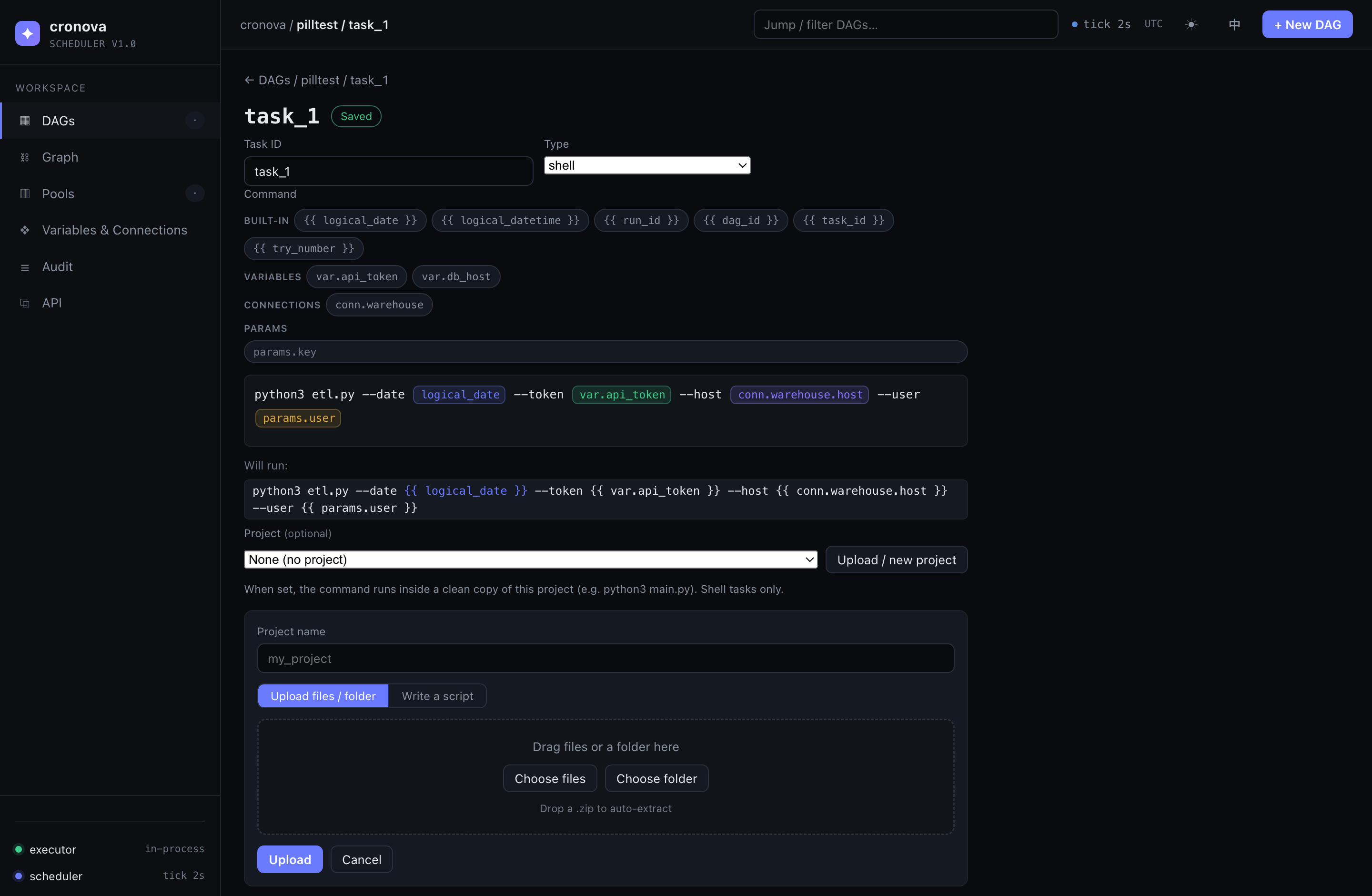
You reach the task editor from a DAG's Structure tab (see Working with a DAG) — click a task row, or add a new task. The breadcrumb and the ← back button return you to the DAG page.
Task ID and type
| Field | Behavior |
|---|---|
| Task ID | The rename applies when the input loses focus (blur), not on every keystroke. IDs must be non-empty, unique within the DAG, and match [A-Za-z0-9][A-Za-z0-9_.-]*. An invalid or duplicate ID shows a warning toast and the input snaps back to the old ID. A successful rename also rewrites every sibling task's dependency that pointed at the old ID. |
| Type | One of shell, python, sql, jar, http. Switching the type immediately re-renders the form below it with that type's fields — the stored command is kept, so you can switch back without losing work. |
The visual command editor
For shell, python, and sql tasks (and the URL/headers/body of http tasks), the command field is a visual template editor. Plain text stays plain text, but every {{ name }} template variable renders as a color-coded pill — an atomic token you can move around but not accidentally edit character-by-character. Pill colors follow the variable kind:
| Pill kind | Pattern | Meaning |
|---|---|---|
| Built-in | {{ logical_date }} etc. |
Per-run values injected by the scheduler |
| Variable | {{ var.KEY }} |
A shared variable from the store |
| Connection | {{ conn.id.field }} |
One field of a stored connection |
| Param | {{ params.key }} |
A manual-trigger parameter |
Working with pills:
- Insert a pill by clicking a chip in the palette, by dragging a chip into the editor at the exact spot you want, or with the keyboard — chips are focusable, and Enter / Space inserts at the caret.
- Move a pill by dragging it to a new position inside the editor; a caret marker shows where it will land.
- Delete a pill with its × button, or place the caret next to it and press Backspace / Del.
- Multi-line commands work naturally: Enter inserts a newline, and pasted code is inserted as plain text with its indentation intact. Single-line fields (like the HTTP URL) collapse pasted newlines to spaces.
- Hover a pill for a tooltip describing what the variable resolves to.
Below the editor, the Will run: preview shows the exact stored string — your command with literal {{ }} placeholders highlighted. Pills are only a view; what cronova persists and renders at run time is that plain template string, identical to what you would write in DAG YAML.
Tip
The editor pill-ifies any {{ dotted.name }} token — exactly the set the scheduler substitutes. If you paste a command that already contains template placeholders, they become pills automatically. See Template variables for what each one resolves to.
The variable palette
Above the editor sits a grouped palette of insertable variables:
| Group | Contents | How it inserts |
|---|---|---|
| built-in | The six run variables: logical_date, logical_datetime, run_id, dag_id, task_id, try_number |
Click, drag, or keyboard |
| variables | One chip per key in the variable store (var.KEY) |
Click, drag, or keyboard |
| connections | One chip per stored connection (conn.id) |
Click opens a field menu — pick host, port, login, or password to insert {{ conn.id.field }}. Dragging the chip inserts .host. |
| params | A free-form key input | Type a key (e.g. day) and press Enter to insert {{ params.day }} |
When no variables or connections exist yet, the group shows a set up link straight to the Resources page. See Variables, connections & params for how the values are defined and injected.
Per-type forms
Each task type renders its own fields (full details in Task types):
| Type | Fields |
|---|---|
shell |
Command pill editor + Will run: preview, plus the Project section below. |
python |
Python code pill editor. The code runs inline via python3 -c; CRONOVA_* variables are readable from the environment, and a non-zero exit means failure. |
sql |
Connection — the id of a configured connection (its type picks the driver: postgres/mysql/sqlite) — and the SQL query pill editor. |
jar |
A structured form: Jar path, Main class (optional), Arguments. The form composes java -jar app.jar … (or java -cp jar main …) and shows it in the Will run: preview. An edit raw command link is the escape hatch to free-form editing; use form switches back, but only if the raw command still parses into the form's shape. |
http |
Method (GET/POST/PUT/PATCH/DELETE/HEAD), URL, Headers (one per line, Key: Value), Body, and Expected status (comma-separated, e.g. 200,201; empty accepts any 2xx). URL, headers, and body are all pill editors, so {{ var. }} and {{ conn. }} work in each. |
Project (shell tasks)
A shell task can attach an uploaded project — a directory of your scripts and data files. The Project section lets you either pick an existing project from the dropdown or open the Upload / new project panel without leaving the editor:
- Upload files / folder — choose files, choose a whole folder, or drag files/folders onto the drop zone. Dropping a
.zipauto-extracts it. - Write a script — type a filename (e.g.
main.py) and its content inline for quick one-file projects.
Give the project a name (letters, digits, . _ -) and hit Upload; the task is pointed at it automatically. At run time every attempt gets a fresh, isolated copy of the project as its working directory, with the copy's path exported as CRONOVA_PROJECT_DIR — see Run your own scripts & projects for the full staging model.
Note
Uploads are additive: re-uploading under the same name upserts files, so pushing one changed script does not require re-sending the whole folder. Running attempts keep the copy they started with; the change takes effect on the next run.
Dependencies and trigger rule
Every other task in the DAG appears as a chip under Depends on — click a chip to toggle it as an upstream of this task. The editor rejects any toggle that would create a cycle: the chip flips back and a "Dependency cycle detected" toast appears, because a DAG must stay acyclic.
The Trigger rule select decides when the task may run relative to its upstreams; a one-line description of the selected rule is shown right under the field:
| Rule | Runs when |
|---|---|
all_success |
All upstreams succeeded (default) |
all_done |
All upstreams finished, success or not — good for cleanup/summary |
one_success |
Any one upstream succeeds |
one_failed |
Any one upstream fails — good for alerts |
all_failed |
All upstreams failed |
none_failed |
No upstream failed (succeeded or skipped) |
See Dependencies & trigger rules for worked examples.
Advanced options
The Advanced options group is collapsed by default and opens automatically when any of its values is set:
| Field | Meaning |
|---|---|
| Pool | Named concurrency slots shared across all DAGs; tasks in the same pool compete for its slots. Pools are managed on the admin pages. |
| Priority | Higher runs first when tasks contend for the same pool. |
| Retries | Attempts after a failure; empty inherits the DAG's default retries. |
| Retry delay (s) | Seconds to wait between attempts; empty inherits the default. |
| Timeout (s) | Kill a single execution after this many seconds. 0 = none. |
| Task SLA (sec) | Measured from run start; alert if the task hasn't finished in time. 0 = off. |
Tuning guidance lives in Retries, timeouts & pools.
Autosave
The badge next to the task title reports the save state of the whole DAG:
| Badge | Meaning |
|---|---|
| Saved | Everything is persisted. |
| Saving… | A debounced save is in flight (edits are batched over ~half a second). |
| Fix errors to save | Validation failed — the errors are listed at the bottom of the form, and nothing is written until they're fixed. |
| Save failed | The server rejected the save; the badge shows the error message. |
Validation covers empty or duplicate task IDs, an empty command (for non-HTTP types), a missing URL on http tasks, a missing connection on sql tasks, and dependency cycles.
Warning
Edits save against the live DAG the moment they validate — there is no draft mode. If the scheduler starts a run while you are mid-edit, that run uses whatever was last saved.
Common questions
Where is the save button? There isn't one. The workflow scheduler UI saves the whole DAG automatically a moment after each valid change — watch the badge flip from Saving… to Saved.
How do I use a secret in a command?
Don't paste it. Store it as a connection or variable, then insert a {{ conn.id.password }} or {{ var.KEY }} pill — the value is substituted at run time and never lives in the DAG definition.
Can I type {{ }} templates by hand instead of using pills?
Yes. Pills are just a visual layer over the stored template string; anything you paste or type that matches {{ name }} becomes a pill, and the Will run: preview always shows the raw string that gets stored.
Why didn't my task rename take effect? The rename applies on blur — click or tab out of the ID field. If the new ID is empty, invalid, or already used by a sibling task, the editor shows a toast and keeps the old ID.