Working with a DAG
The DAG page (#/dag/<id>) is where you operate a single workflow in the cronova web console: trigger and monitor runs, edit tasks and dependencies, and tune scheduling and safety settings. Everything you change here is saved automatically — there is no save button.
Open it by clicking any row on the dashboard. The page has a hero header plus three tabs — Runs, Structure, and Settings — and each tab is deep-linkable (#/dag/<id>/structure, #/dag/<id>/settings).
The hero header
The top of the page summarizes the DAG and holds its primary actions.
Live facts (recomputed from the latest 25 runs):
| Fact | Shows |
|---|---|
| Last run | State badge, start time, and duration of the most recent run — or "No runs yet" |
| Schedule | A plain-language gloss plus the raw expression (e.g. "Runs every 5 min · @every 5m"), or "manual trigger only" |
| Success rate | succeeded/finished over the recent runs shown (e.g. 8/10 success) |
Actions:
| Control | What it does |
|---|---|
| ▶ Trigger run | Queues a manual run immediately |
| ⋯ (Trigger with params) | Opens a key/value dialog, then triggers with those parameters |
| Pause / Resume | Toggles paused — a paused DAG is not scheduled, but you can still trigger it manually |
| ⧉ Duplicate | Copies the whole DAG under a new id (same spec, fresh run history) |
| YAML | Opens the YAML drawer |
Next to the DAG id you'll also see a save-state badge (Saved / Saving… / Fix errors to save / Save failed). Every edit on this page — structure or settings — is validated and written to the server after a short debounce; validation errors appear in a banner under the tabs and block saving until fixed.
Note
Both trigger buttons are disabled while the DAG has zero tasks — a freshly created shell opens on the Structure tab so you can add the first task.
Triggering a run
Click ▶ Trigger run to queue a run right away. The console flushes any pending edits first (so the run uses your latest definition), shows a "Triggered — run queued" toast, and the new run appears at the top of the Runs tab moments later with trigger type manual.
To pass runtime parameters, click the ⋯ button instead. A dialog lets you add key/value rows (empty rows are ignored):
- Each key is injected into task environments as a
CRONOVA_PARAM_*environment variable. - Commands can reference values as
{{ params.key }}template variables.
The same dialog has an optional Priority field (−100 to 100, default 0): a higher-priority run wins the competition for dispatch slots, and under the serial_priority execution policy the queue drains highest priority first. A run triggered with a non-zero priority shows a small P<n> badge next to its state badge in the Runs tab and on the run detail page.
See Variables, connections & params for the full templating model.
Runs tab
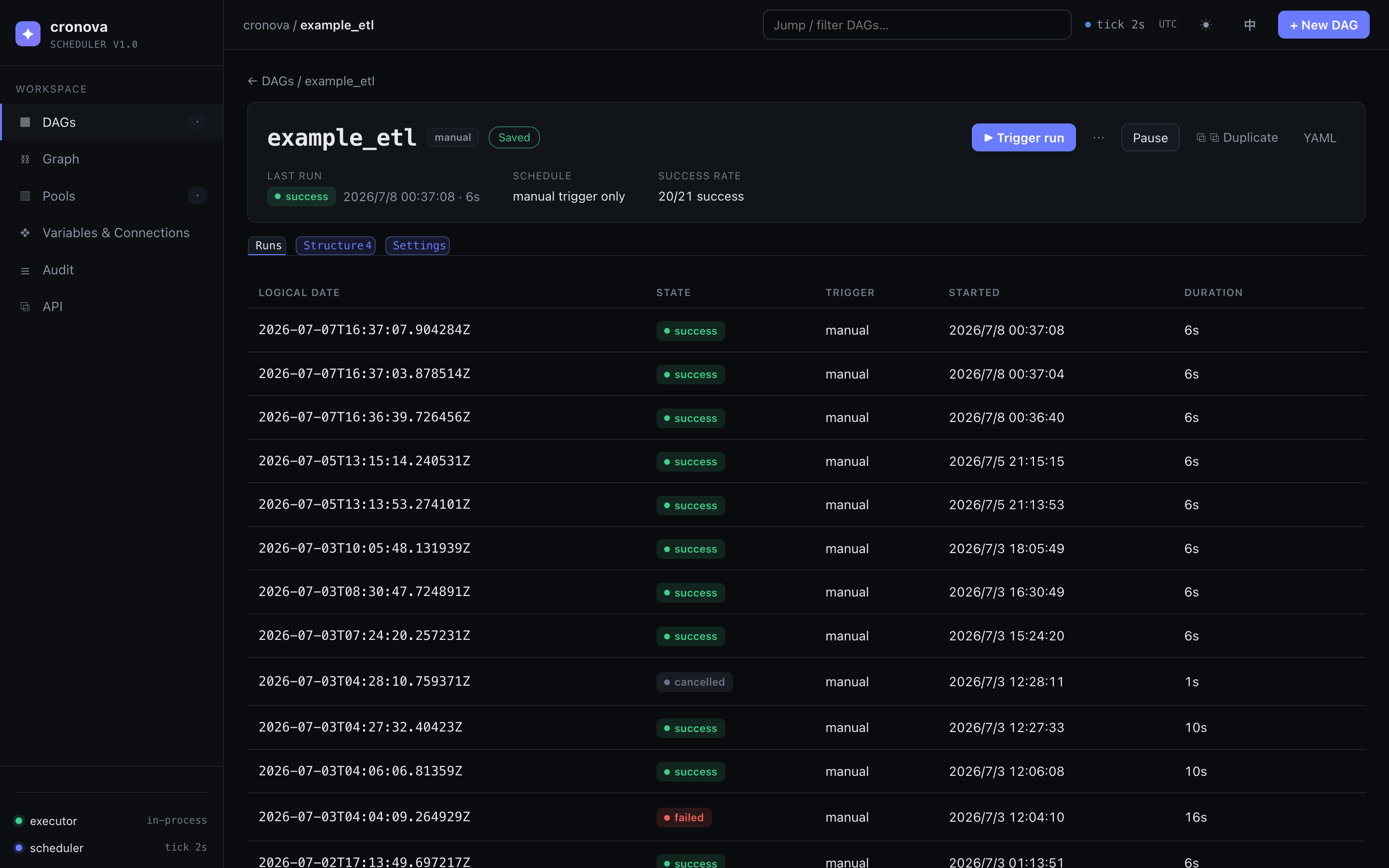
The default tab lists the 25 most recent runs of this DAG, newest first:
| Column | Contents |
|---|---|
| logical date | The run's logical date (the data interval it represents) |
| state | Badge: queued, running, success, failed, cancelled, timed out, … |
| trigger | How the run started: scheduled, manual, or dependency (cross-DAG) |
| started | Wall-clock start time |
| duration | Elapsed time (live for running runs) |
Click a row to open the run's detail page with per-task states and logs — see Runs, logs & recovery.
Inline actions appear in the last column (hidden for read-only viewer sessions):
- ✕ Cancel run — on a
queuedorrunningrun; asks for confirmation, then stops it. - ↻ Retry failed — on a
failed,cancelled, ortimed outrun; re-queues it in place.
While any run is queued or running, the tab polls the server every 3 seconds and refreshes the list and hero facts automatically. Polling stops on its own once everything has settled, so an idle DAG page makes no background requests.
Structure tab
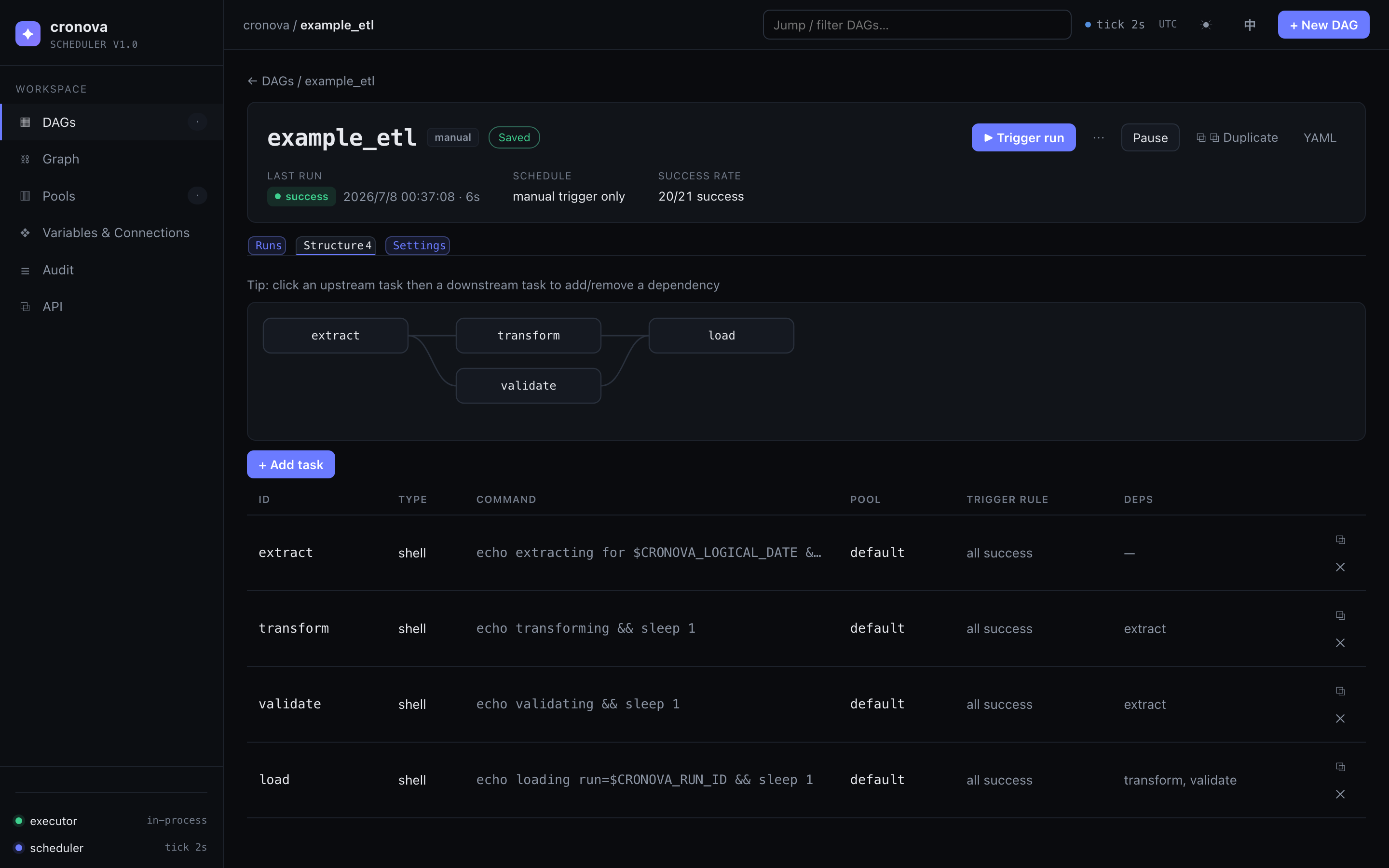
The Structure tab shows the DAG's dependency graph and task list. The tab pill displays the task count.
Dependency graph
The graph renders every task as a node with edges for dependencies. You can pan and zoom it, and — this is the key interaction — edit edges by clicking:
- Click the upstream task's node (it becomes the pending selection).
- Click the downstream task's node.
If the edge doesn't exist it is added; if it already exists it is removed. Clicking the same node twice cancels the selection. Every new edge is cycle-checked first — a connection that would create a dependency cycle is rejected with a "Dependency cycle detected" toast and nothing is saved.
Task table
Below the graph, each task gets a row:
| Column | Contents |
|---|---|
| id | Task id (monospace) |
| type | Task type (shell, python, http, …) |
| command | Command excerpt (click to copy the full command) |
| pool | The concurrency pool the task runs in |
| trigger rule | When the task fires relative to upstreams (all success, one failed, …) |
| deps | Upstream task ids |
Click a row to open that task in the task editor. Each row also has:
- ⧉ Duplicate — clones the task as
<id>_copywith the same deps. - ✕ Remove — deletes the task after a confirmation dialog; references to it in other tasks'
depsare scrubbed automatically.
+ Add task creates a new task (task_1, task_2, …) and drops you straight into the task editor to fill in its command. See DAG & Task Reference for every task field, and Dependencies & trigger rules for how trigger rules behave.
Settings tab
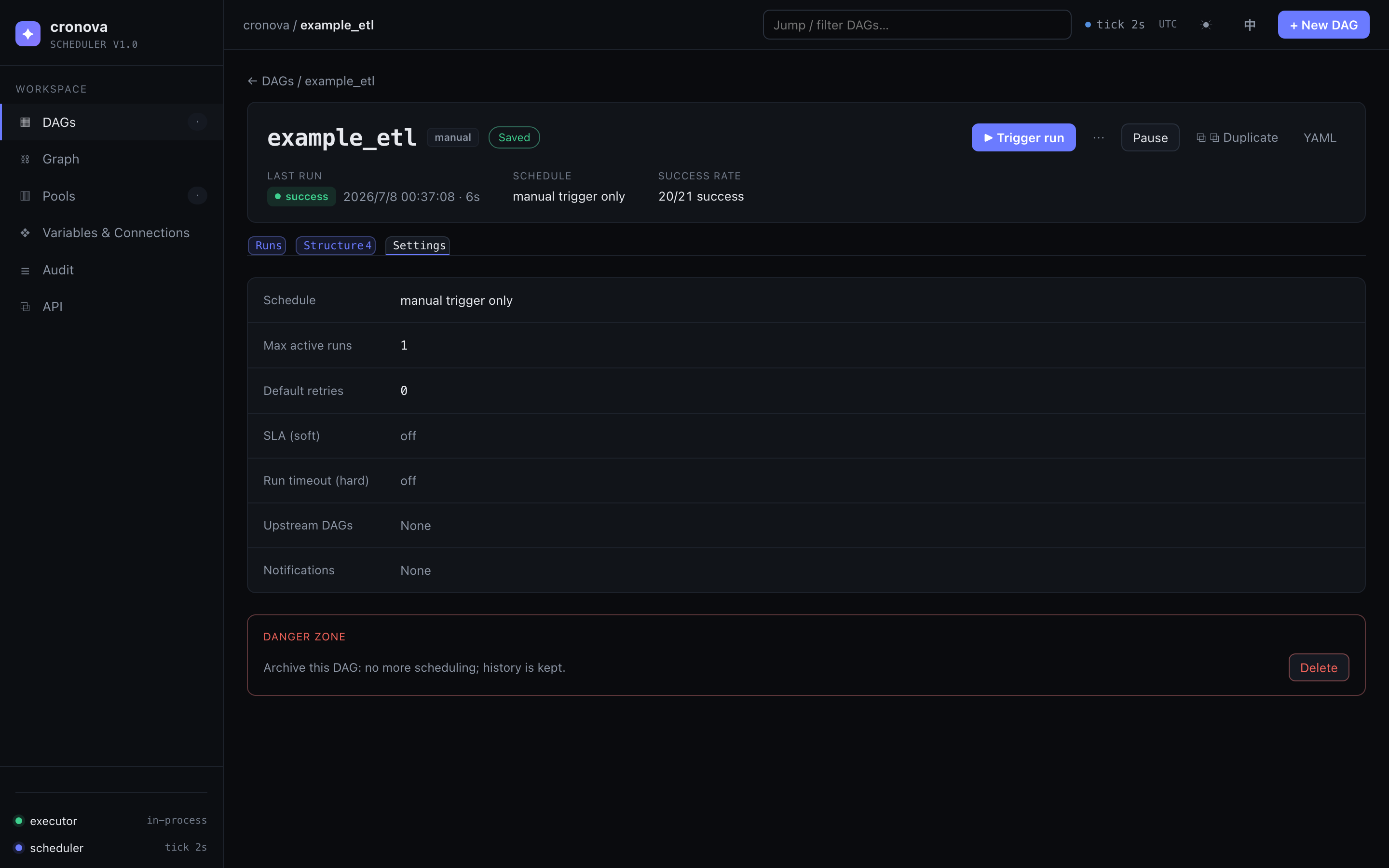
Settings are a list of one-line summary rows — click a row to expand its editor in place, change the value, then click Done. Changes save immediately as you type.
| Setting | What it controls |
|---|---|
| Schedule | Manual / Interval / Cron — same three modes as the New DAG dialog, with cron presets, a live "Next: …" fire-time preview, and a start date. A Catchup checkbox is shown but currently disabled ("coming soon"). |
| Max active runs | How many runs of this DAG may execute concurrently |
| Execution policy | How queued runs are admitted when another run is active: Parallel (up to Max active runs concurrently — the default), Serial (wait) (one at a time, later runs queue in logical-date order), Serial (discard) (one at a time, runs arriving while busy are cancelled — visibly, never silently), or Serial (priority) (one at a time, the queue drains highest run priority first). Serial policies force at most one active run regardless of Max active runs. |
| Default retries | Retry count applied to tasks that don't set their own |
| SLA (soft) | Seconds from run start; if the run hasn't finished, an alert fires but the run keeps going. 0 = off. Requires a notification webhook. |
| Run timeout (hard) | Seconds from run start; on breach the run is force-failed, running tasks are killed, and the run ends as timed_out. 0 = off. |
| Upstream DAGs | Pick other DAGs whose success automatically triggers this one — see Cross-DAG triggers & notifications |
| Notifications | A webhook URL (Slack/Feishu/Discord compatible) plus event chips for Failure and Success; a JSON payload is POSTed when a run finishes in a selected state. Events can only be selected once a URL is set. |
For scheduling syntax (@every 5m, five-field cron) see Scheduling & catchup.
Danger zone: deleting a DAG
At the bottom of the Settings tab, Delete archives the DAG after a confirmation dialog: it disappears from lists and stops being scheduled, but its run history is kept and it can be restored later. Deletion is refused (HTTP 409) while the DAG has active runs — cancel them first.
Warning
Delete in cronova is an archive, not a purge — history survives. But the DAG stops scheduling immediately, including any downstream DAGs that depend on it via cross-DAG triggers.
The YAML drawer
Click YAML in the hero to see the DAG exactly as the console's forms wrote it — the same YAML you could manage from the CLI. From the drawer you can Copy it to the clipboard or Download it as <dag_id>.yaml. This is the escape hatch for code review, version control, or migrating a DAG definition — the format is documented in the DAG & Task Reference.
Duplicating a DAG
Click ⧉ Duplicate in the hero, enter a new DAG id (defaults to <id>_copy), and confirm. The full spec — tasks, dependencies, schedule, settings — is copied under the new id with a fresh, empty run history, and the console opens the new DAG's page.
Tip
Duplicate is the fastest way to stage a risky change: copy the DAG, edit and trigger the copy manually, and only port the change back once it runs green.
Common questions
Where is the save button? There isn't one. Every edit auto-saves after a short debounce; watch the badge next to the DAG id — Saved means the server has your latest version. If it reads Fix errors to save, resolve the errors listed under the tabs.
Does pausing a DAG kill its running runs? No. Pause only stops future scheduling. Runs that are already queued or running continue; cancel them individually from the Runs tab if needed.
Can I re-run a successful run?
Not from the inline actions — retry appears only on failed, cancelled, and timed out runs. For a fresh execution, trigger a new run; to re-run individual tasks inside a run, open the run detail page (Runs, logs & recovery).
How do I add a dependency between two tasks? Either click upstream-then-downstream in the Structure tab's graph, or open the downstream task in the task editor and toggle its upstream chips. Both paths are cycle-checked.